User guide · Chapter 6 of 13
Turn a PDF into a course or a website
Upload a guide you wrote and get a course website with one page per lesson.
- 1
Open Course from a PDF
Go to Content Studio and choose Course from a PDF (or open ubuilder.ai/app/course). Drop in a PDF or .txt file up to 30 MB, about 300 pages. Only upload material you wrote or have the right to use.
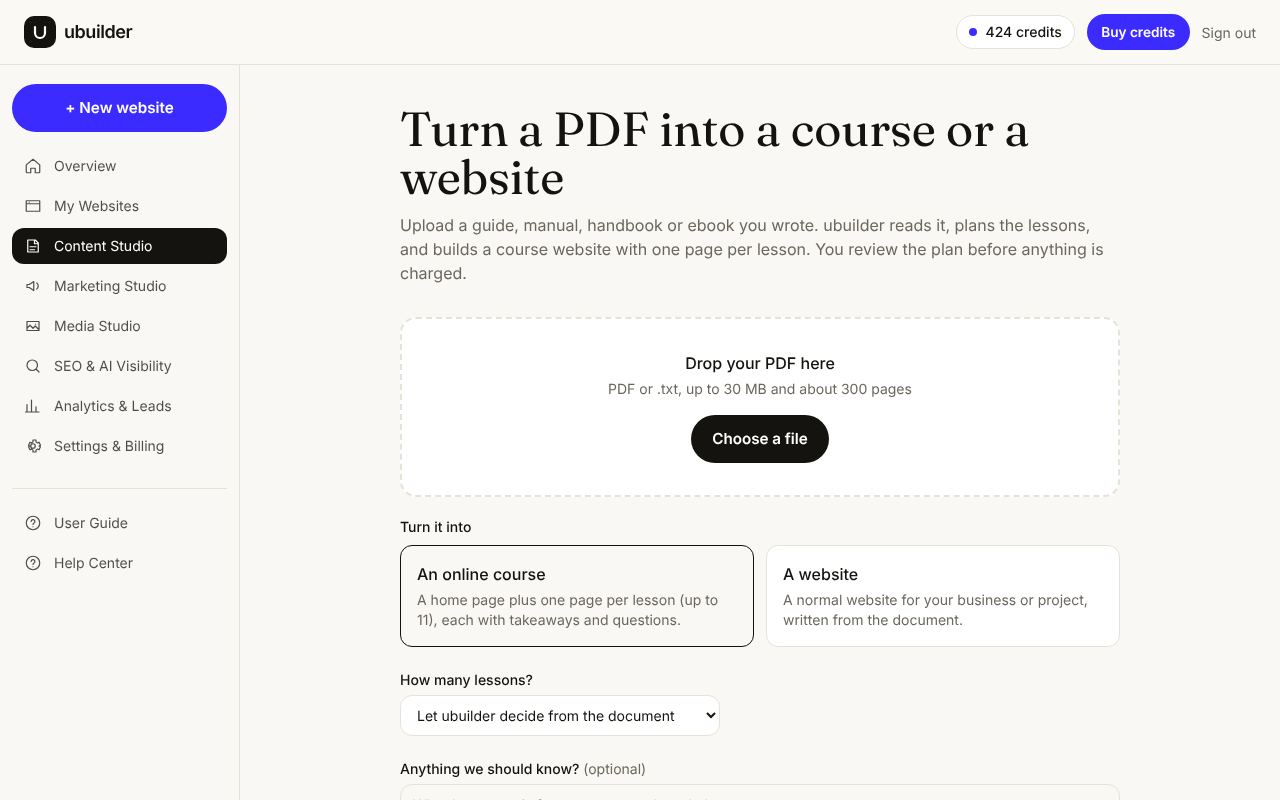
The upload page: drop a PDF, choose course or website, choose how many lessons. Click the picture to see it full size. - 2
Choose course or website
"An online course" makes a home page plus one page per lesson. "A website" makes a normal business website written from the document. For a course, pick how many lessons you want or let ubuilder decide from the document.
- 3
Review the plan (free)
ubuilder reads the document and shows the plan: a course title, who it is for, and each lesson with the pages it covers. Rename any lesson and remove the ones you do not want. Nothing is charged for the plan. The price is shown: 15 credits for the course home page plus 12 credits per lesson, up to 11 lessons.
- 4
Build it
Press Build this course. The home page is built first, then each lesson, four to seven minutes a page; keep the tab open. Every lesson is taught from the matching pages of your document and ends with key takeaways, questions with answers, and links to the previous and next lesson.
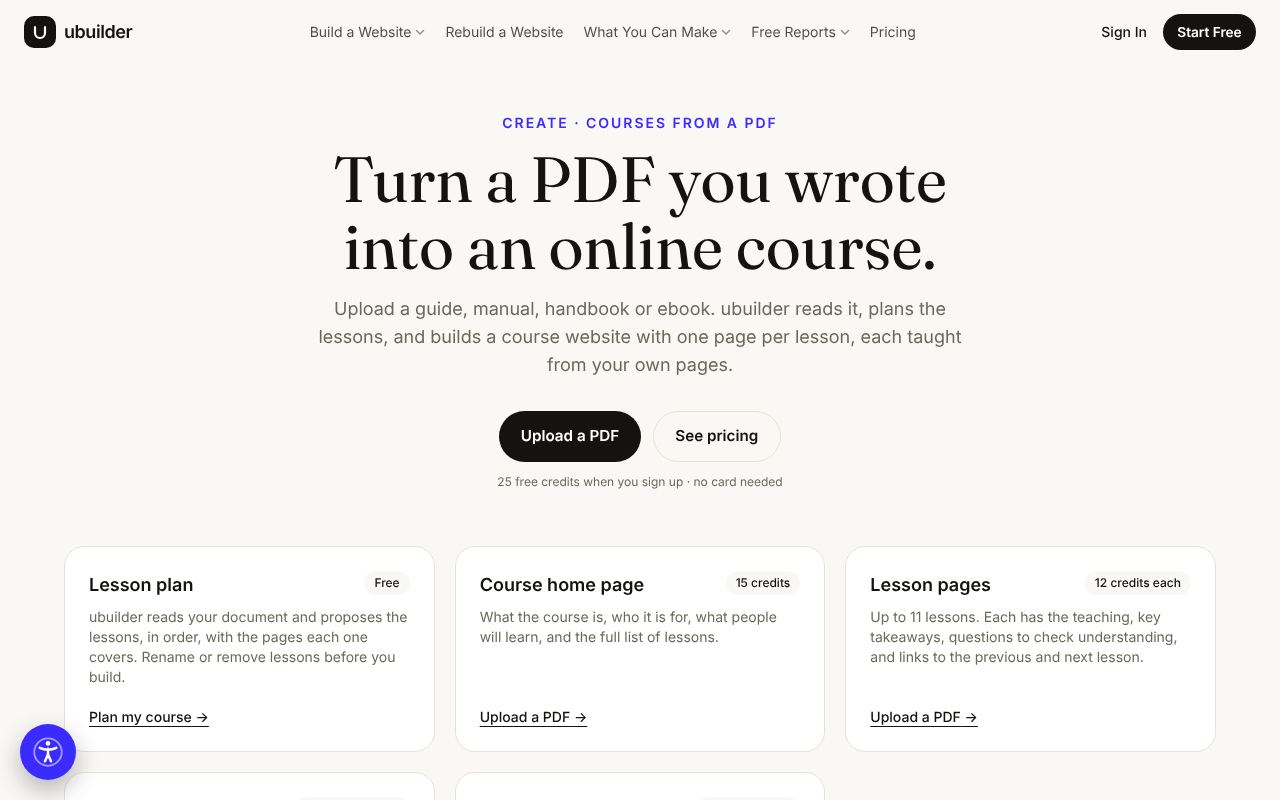
The public page that explains courses from a PDF, with an example. Click the picture to see it full size. - 5
Edit and publish like any site
A course is a normal ubuilder website, so everything in this guide applies: change a lesson by asking in the chat, publish for free, connect your own domain.
- 6
Choose who can read it: open, sign-up or paid
Open the course's Settings and find "Who can read this course". Open lets anyone read every lesson. Free with sign-up asks for a name and email before the lessons open, and gives you the list of learners to download. Paid sells the course for one payment (between 1 and 1,000, in CAD or USD) through your own Stripe account; ubuilder keeps 5% of each sale. The course home page is always public, and you can keep the first lesson open as a free preview.
Good to know: Buyers get an email with a link that opens the course on any phone or computer. Access works through that link and the browser they used; there are no passwords, progress tracking or certificates.
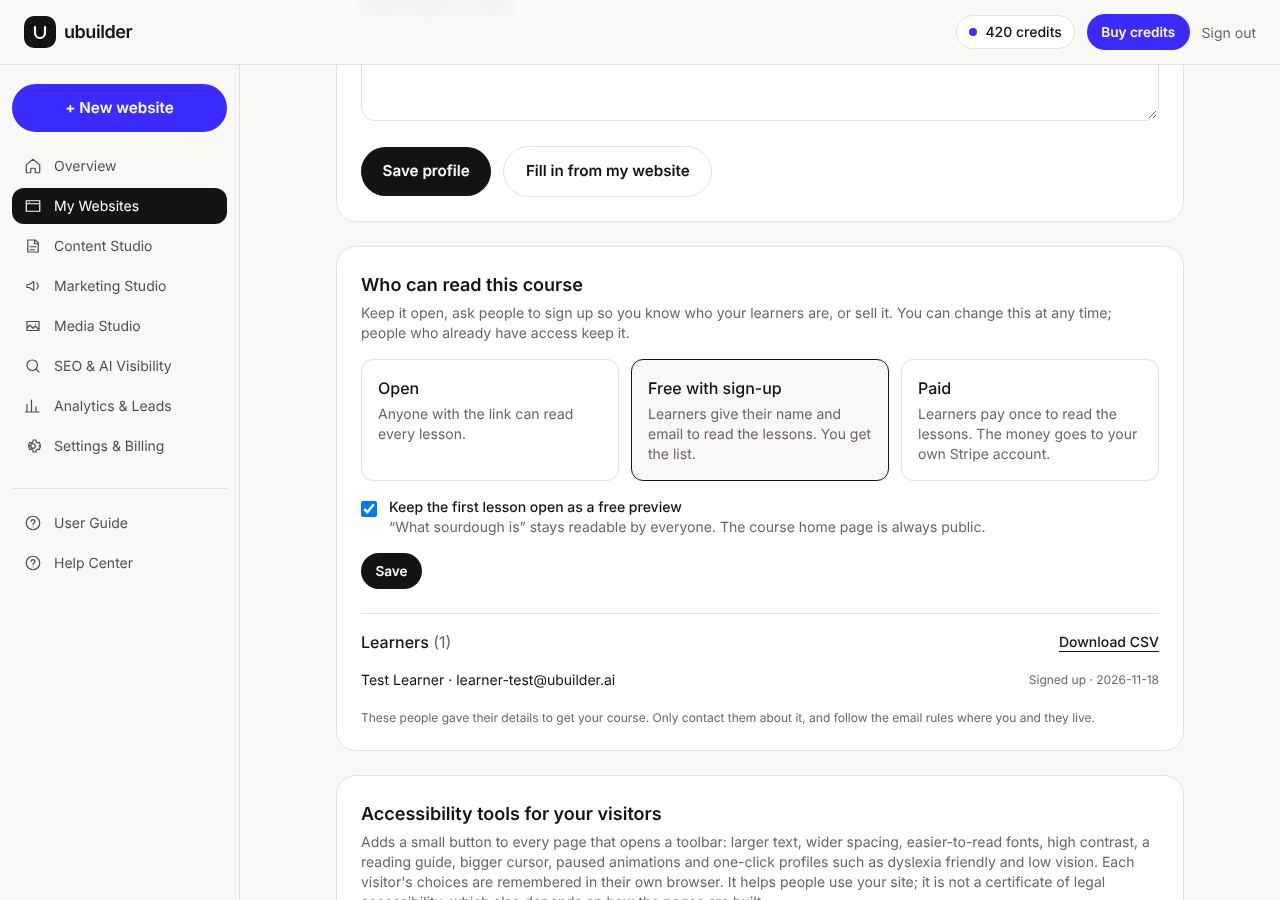
The course access card in Settings: Open, Free with sign-up or Paid, and the list of learners. Click the picture to see it full size.
Stuck? Email hello@ubuilder.ai or use the Ask a question button at the bottom right.