User guide · Chapter 11 of 13
Messages, contacts and visitors
Where form messages, petition signatures and course learners arrive, your contacts list (CRM), and how to see who is visiting.
- 1
Forms work straight away
Every form on your published site delivers. Messages arrive in the site's Leads tab (the Inbox) and we email you each one. You can export them as a CSV file.
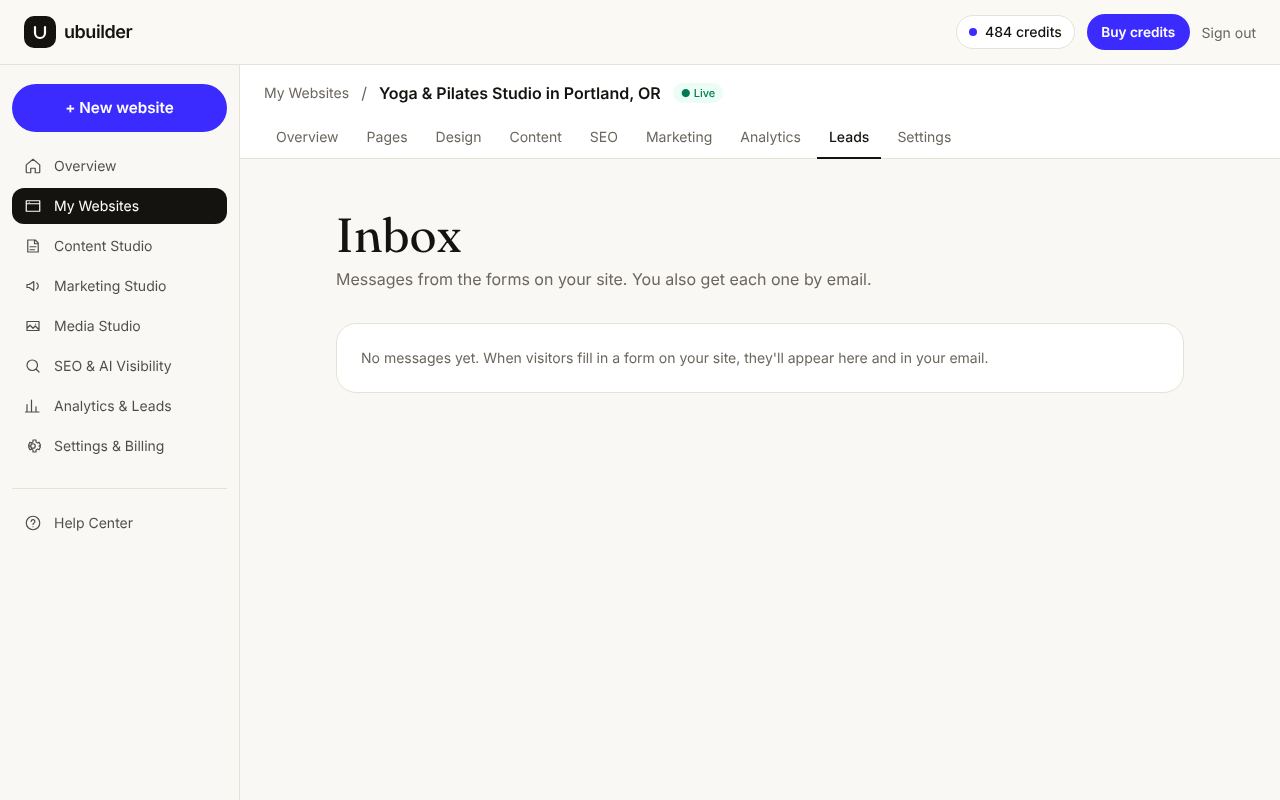
The Inbox for one website. Click the picture to see it full size. - 2
Auto-reply
Open Auto-reply at the top of the site's Inbox, write a subject and message, and click "Switch on auto-reply". Anyone who fills in a form and gives an email address then gets your message straight away. It comes from your site's name, and their reply goes to the email address you sign in with. Each address gets it at most once a day, and a site sends up to 100 a day. It is free.
Good to know: The auto-reply only sends the text you write. It doesn't repeat what the visitor typed.
- 3
See your visitors
The Analytics tab shows visits to your published site over the last 30 days. Counting is done without cookies, so your site needs no cookie banner for it. Daily trends, top pages, where visitors come from, countries and devices come with the Business and Agency plans.
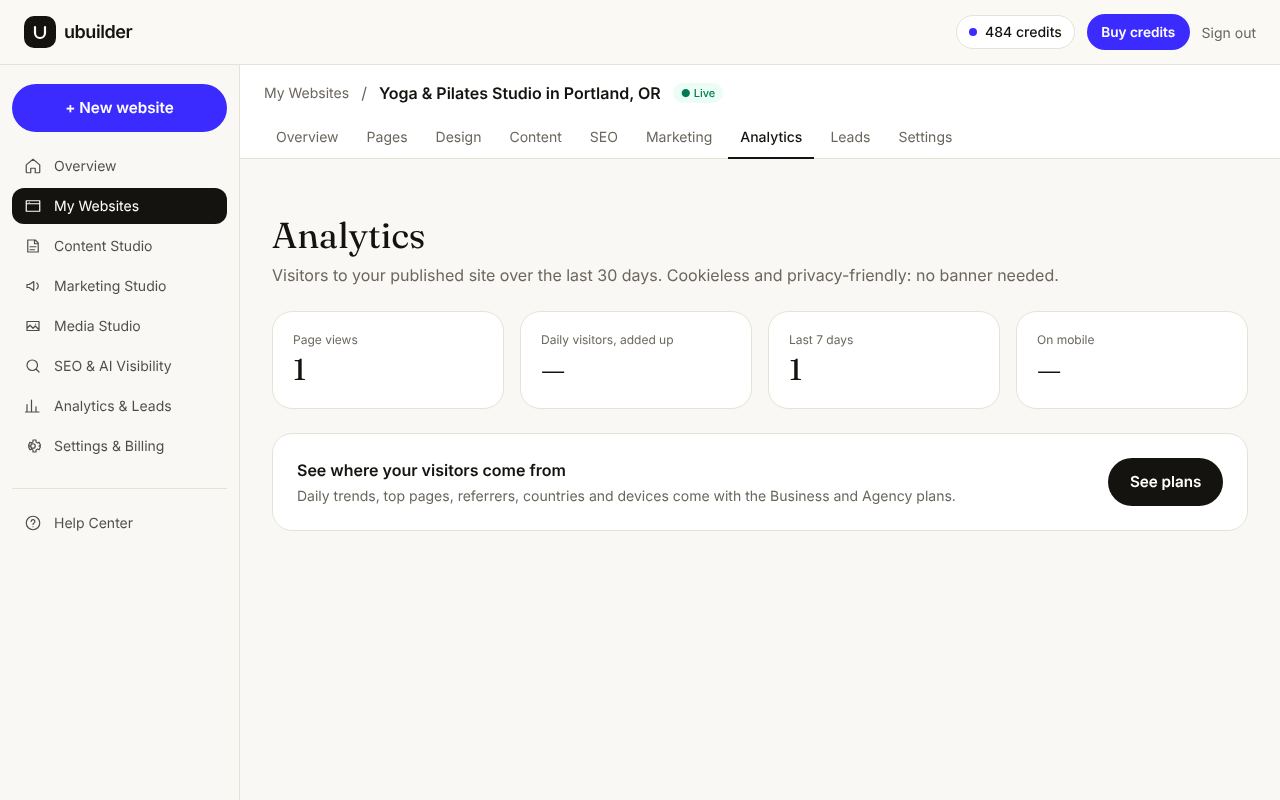
The Analytics tab for one website. Click the picture to see it full size. - 4
All your sites in one view
Analytics & Leads in the left menu lists every one of your websites with its visits and messages, and shows the latest messages from all of them, so you don't have to open each site.
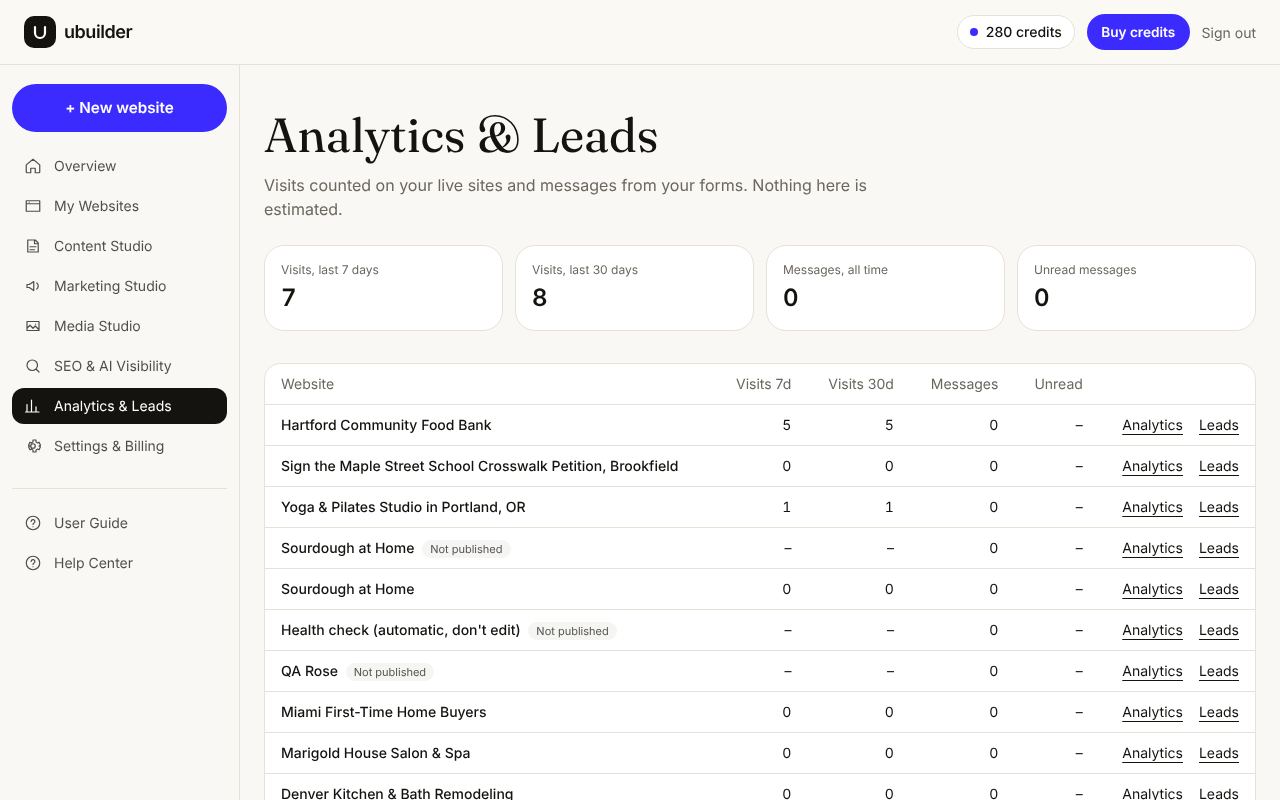
Analytics and Leads: visits and the latest messages across all your websites. Click the picture to see it full size. - 5
Petition signatures and course learners
On a petition site, each signature arrives in the Leads tab like any other form, and the page's count goes up (each email is counted once). On a course set to sign-up or paid, your learners are listed under the course's Settings, in "Who can read this course". Both lists download as a spreadsheet (CSV) that opens in Excel or Google Sheets, or imports into the contact or email tool you already use.
Good to know: The same people also appear in Contacts (next step), where you can add notes, tags and follow-up dates.
- 6
Contacts: your CRM
Contacts (CRM) in the left menu (on a phone, press Menu at the bottom left) gathers everyone who sent a form, signed a petition or joined a course on any of your sites into one list, one line per person. Search it, filter by status, site or tag, add a contact yourself, or import a list from a spreadsheet saved as CSV (it needs an Email column; up to 2,000 rows at a time). It is included on every site with any monthly plan; without a plan you add it to a website for 30 credits, once. People who wrote in before you added it are kept and appear straight away.
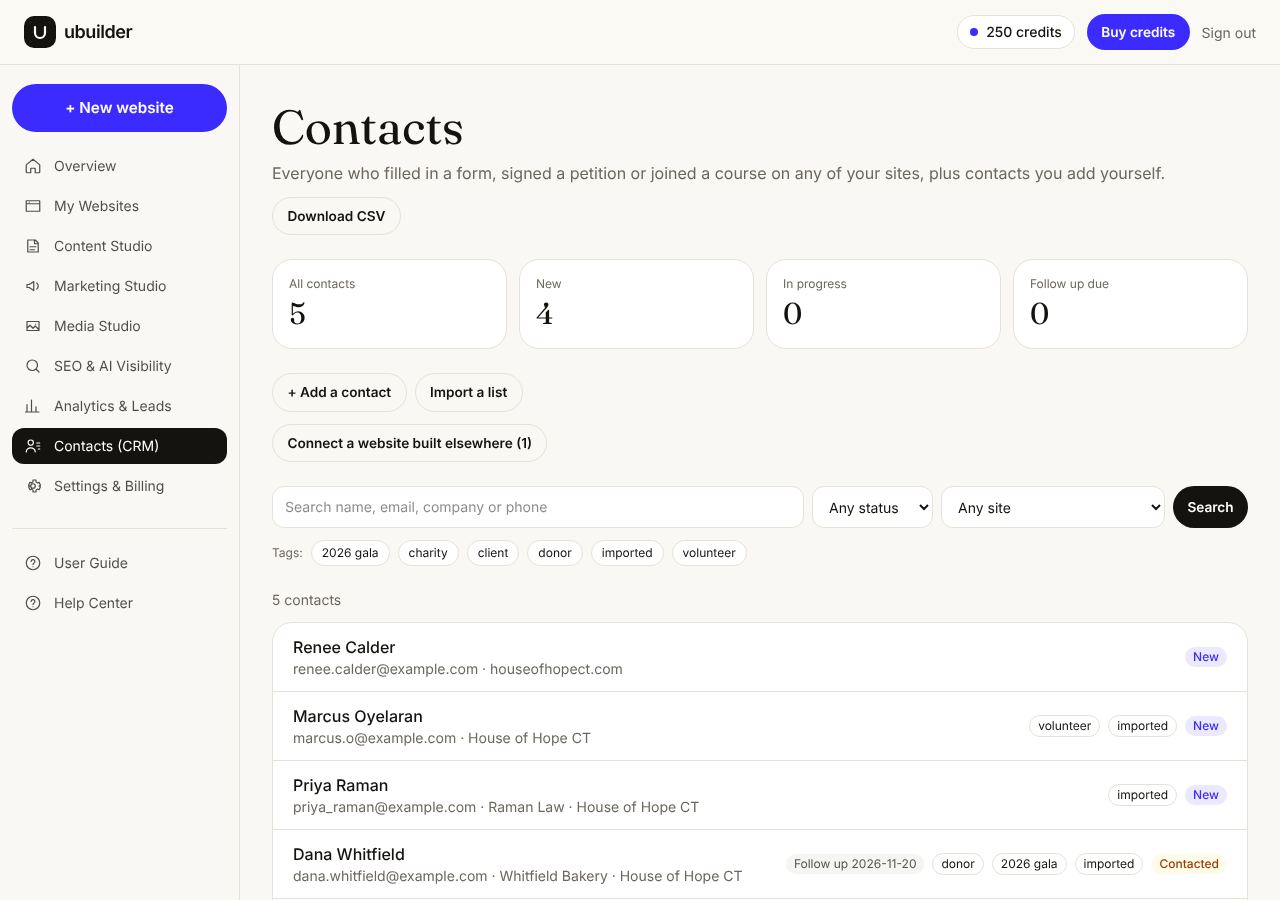
The Contacts page: totals, search and filters, and the list of contacts. Click the picture to see it full size. - 7
Work a contact
Open a contact to set a status (New, Contacted, In progress, Won, Not now), add tags, write dated notes, and pick a follow-up date. On that morning ubuilder emails you a reminder. The page also shows everything that person did on your sites: the forms they sent, a petition they signed, a course they joined.
Good to know: These are real people's details. Use them only for what they contacted you about. If someone asks you to delete their information, Delete this contact removes them, their notes and the messages they sent. ubuilder does not send emails or newsletters to your contacts; download the CSV to use an email tool.
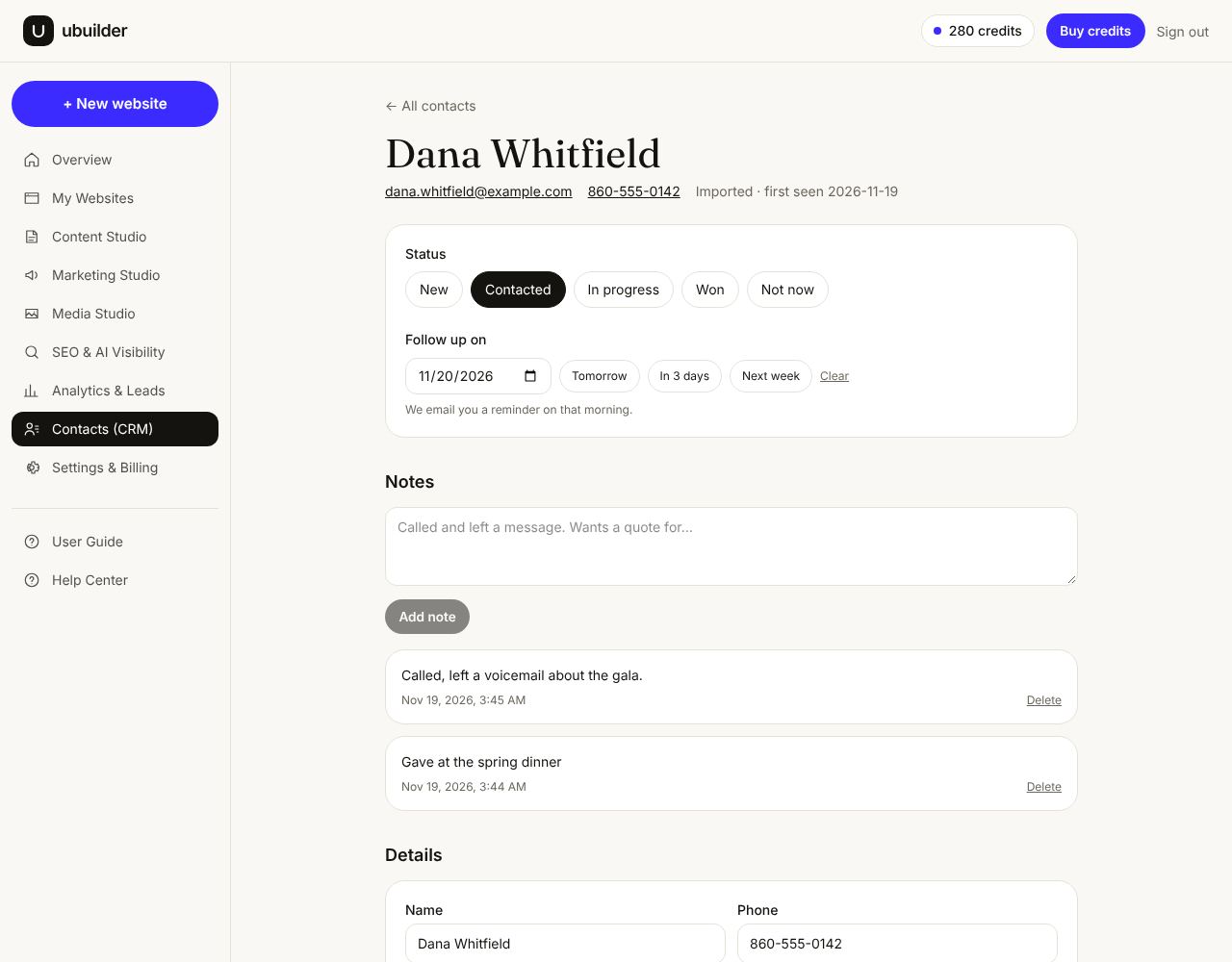
One contact: status, follow-up date, notes and history. Click the picture to see it full size. - 8
Connect a website you built somewhere else
On a monthly plan, Contacts has a button, Connect a website built elsewhere. Name the site and paste its one-line snippet into that site, just before the closing body tag or wherever its builder lets you add custom code. From then on, every form sent on that site also arrives in your Contacts and by email, labelled with the site's name, so one list covers all your websites and you always know which one a person wrote from.
Good to know: The snippet copies what a visitor typed into a form; it does not change the site's own form and uses no cookies. It works with real HTML forms, which covers most sites. Say in that site's privacy policy that messages are stored in ubuilder.
- 9
Daily check
Each published site is checked every day to make sure it is online. The result is on the site's Overview tab, where you can also run the check yourself.
Stuck? Email hello@ubuilder.ai or use the Ask a question button at the bottom right.