User guide · Chapter 1 of 13
Build your first website
From a one-sentence description to a finished site you can share. No experience needed.
- 1
Describe your business
On the ubuilder.ai home page, type what your business does, where, and for whom. One or two sentences is enough: "A family dental practice in Austin, calm and reassuring". The more real detail you give (name, services, prices, opening hours), the less you will need to change later. Not sure what to write? Click one of the "Try" examples under the box (a hotel, a law firm, a charity, a petition and more) to fill it in, then change it to fit you.
Good to know: The tabs above the box switch between building a new website, rebuilding one you already have, a free website report and fun AI photos. The microphone lets you speak instead of typing. Once you are signed in, the + next to the chat box attaches a logo, photos or a document.
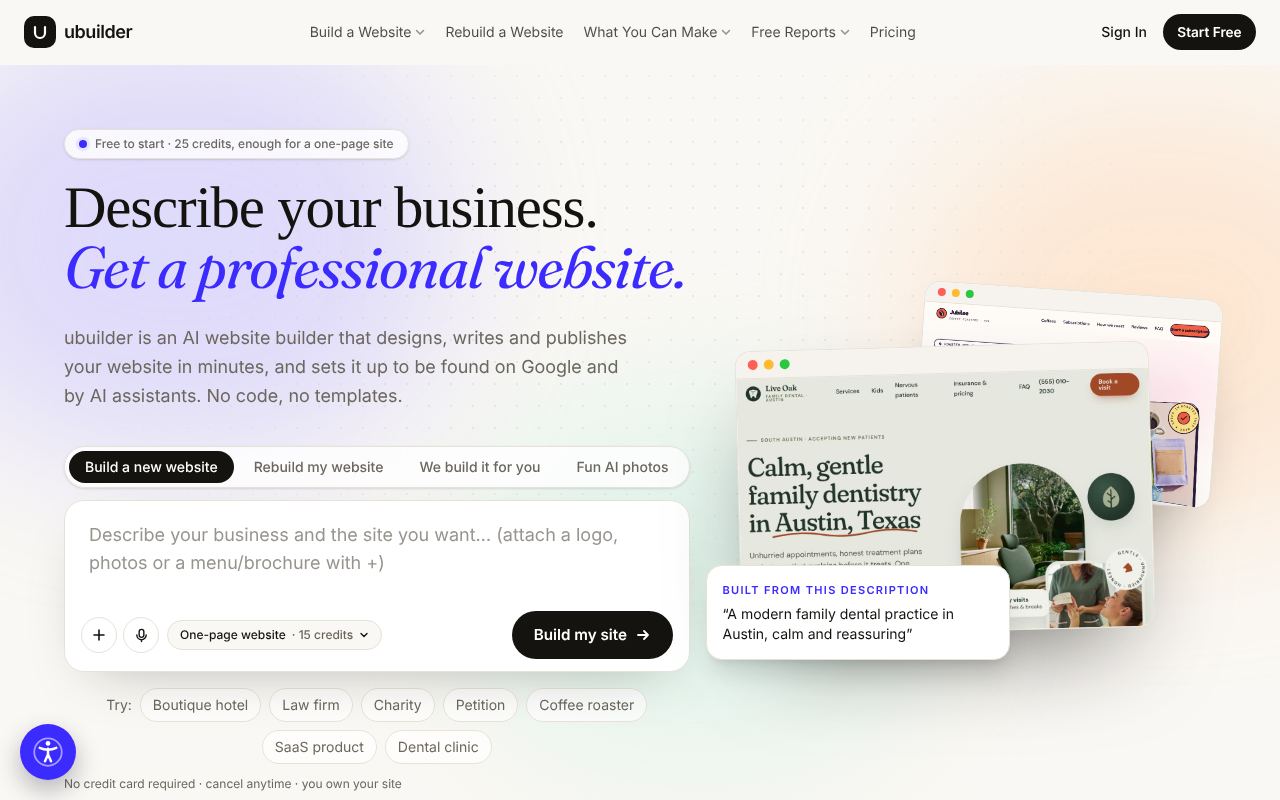
The ubuilder home page with the box where you describe your business. Click the picture to see it full size. - 2
Choose one page or a full website
A one-page site (a landing page) costs 15 credits. A full 5-page website (home, about, services, contact and more) costs 63 credits. New accounts get 25 free credits with no card, which covers a one-page site and a few changes.
- 3
Sign in with your email
Enter your email address and click the link we send you. There is no password to remember. Your description is kept while you sign in, and the build starts as soon as you are back.
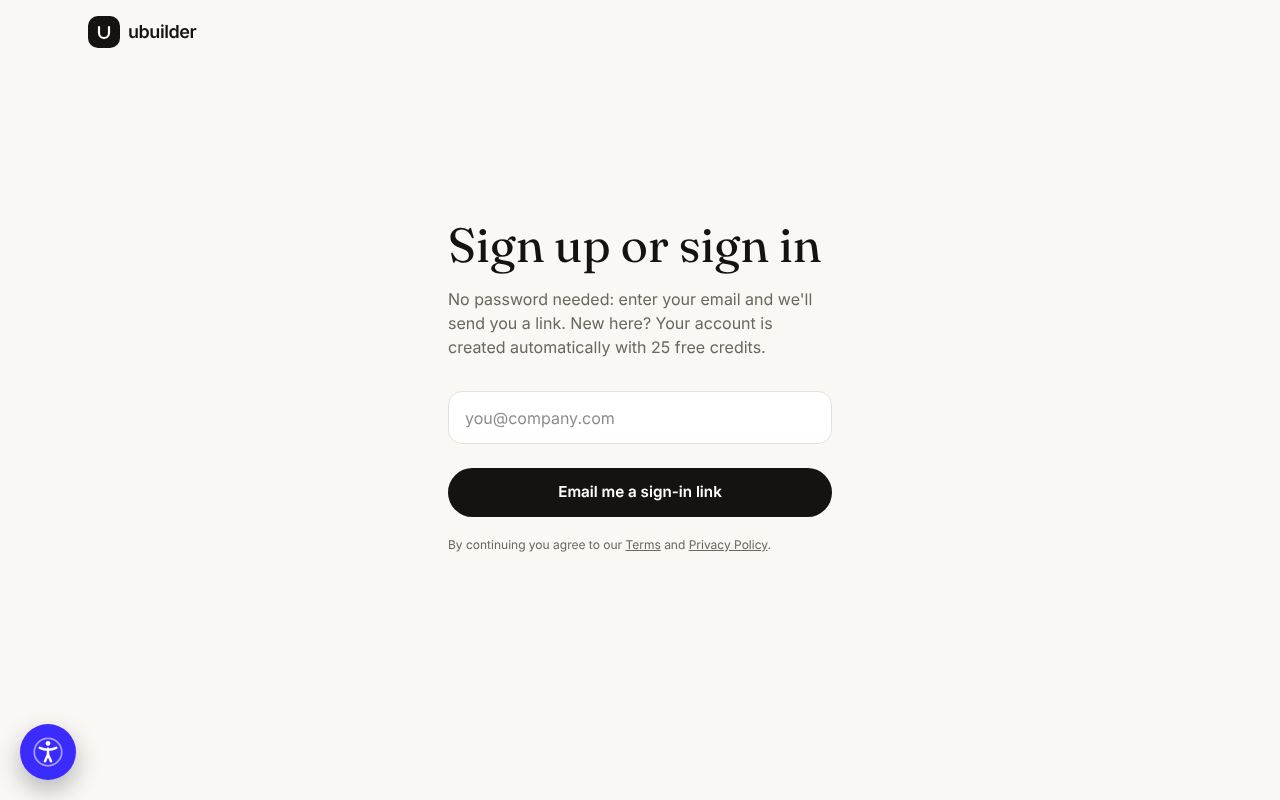
The sign-in page asking for an email address. Click the picture to see it full size. - 4
Watch it build
ubuilder designs and writes the page while you watch. A page takes four to seven minutes. For a full website the home page comes first, then the other pages one after another; keep the tab open until they are all done.
Good to know: If you press Stop while a page is building, nothing is saved and the credits for that page are returned.
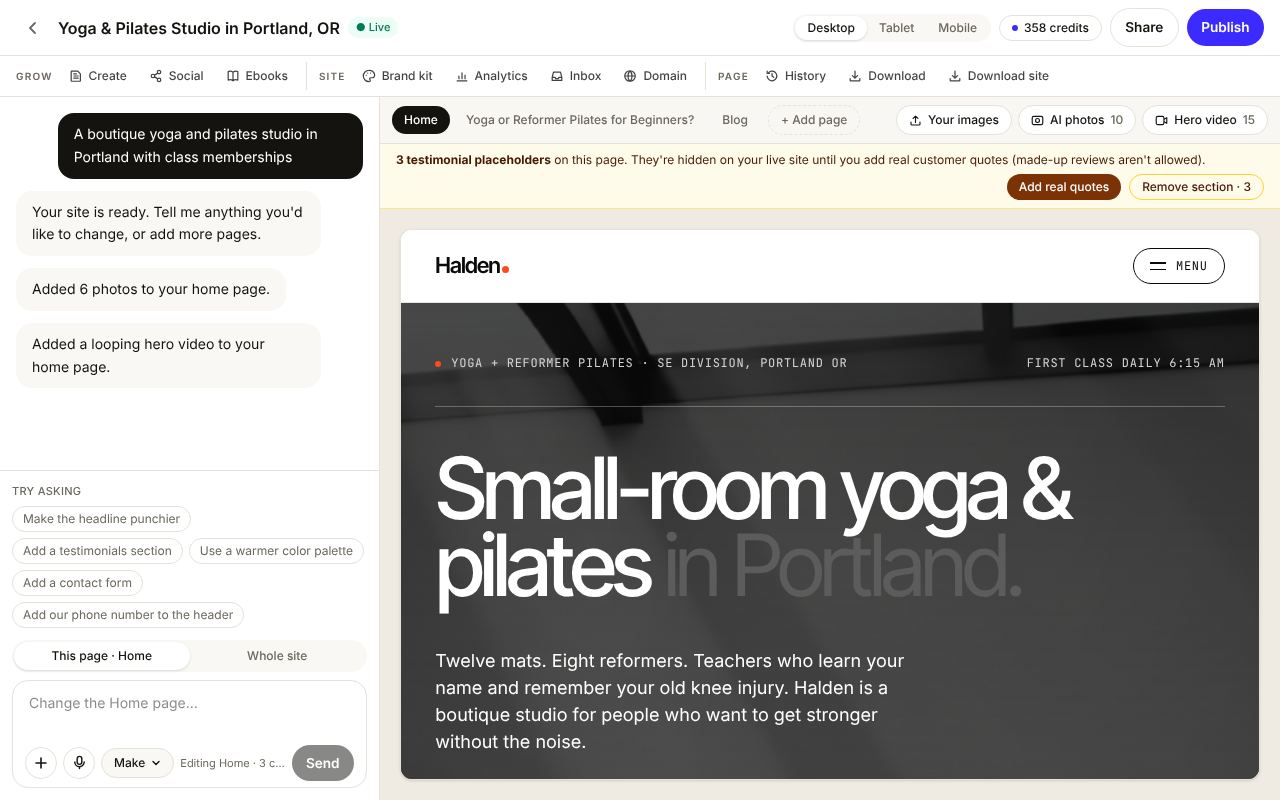
The editor: chat on the left, your website on the right. Click the picture to see it full size. - 5
See what others look like first
ubuilder.ai/examples shows finished websites, a course, a charity site and a petition site, plus a real example of every other thing ubuilder makes (blog post, ebook, newsletter, ads, logo, photos, video), shown exactly as the tool produced it.
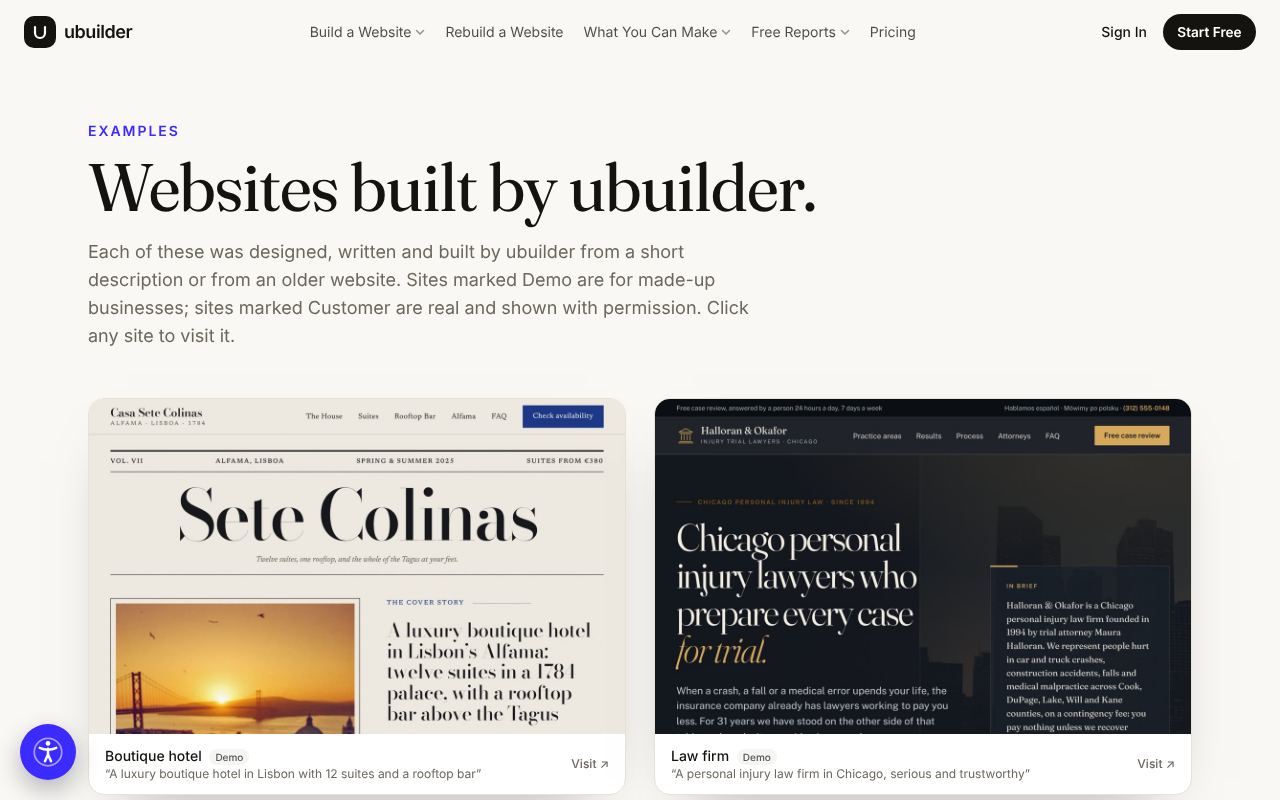
The examples page with finished websites. Click the picture to see it full size. - 6
Check it, then publish
Read your site in the preview on the right. When you are happy, press Publish at the top right, choose your address, and press Publish now. Publishing is free. The next chapters show how to change anything first.
Stuck? Email hello@ubuilder.ai or use the Ask a question button at the bottom right.