User guide · Chapter 2 of 13
Change anything on your site
Edit by asking in plain English, add pages, use your own logo and photos, and undo mistakes.
- 1
Ask for a change in the chat
In the box at the bottom left, type what you want: "make the headline shorter", "add our phone number to the header", "add a pricing section with three plans". Press Send. Each change costs 3 credits. The suggestions above the box ("Try asking") are a quick way to start.
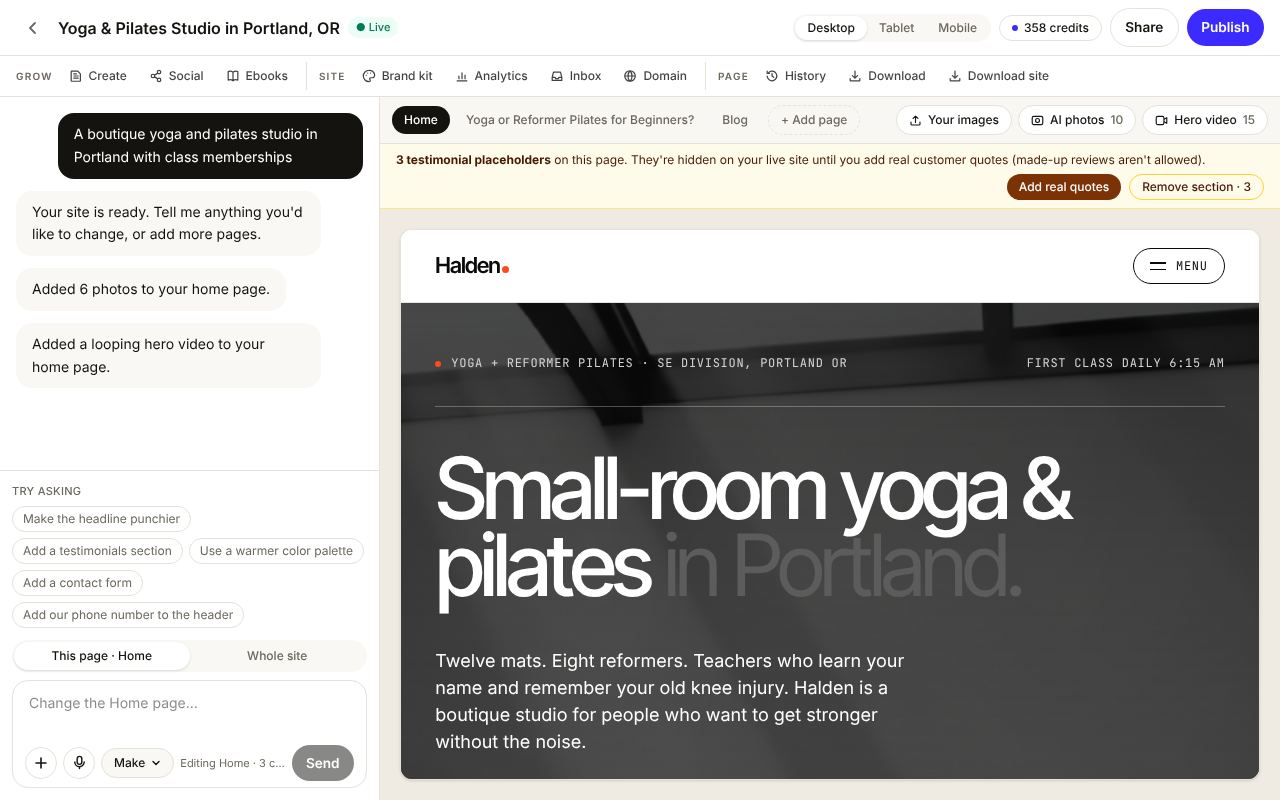
The editor with the chat box at the bottom left. Click the picture to see it full size. - 2
This page or the whole site
The switch above the chat box decides where a change applies. "This page" changes only the page you are looking at. "Whole site" applies the same request to every page, which is what you want for things like a new phone number or a different tone of voice.
- 3
Move between pages and add new ones
The row above the preview shows your pages. Click one to open it. Click + Add page to add another: pick a suggestion or name your own. A new page costs 15 credits and matches your design and menu automatically.
- 4
Use your own logo and photos
Click Your images above the preview to upload your logo and photos (free), then place them on any page with one click. You can also attach an image to a chat message with the + button and say where it should go.
- 5
Colours, fonts and logo: the Brand kit
Click Brand kit in the toolbar to change your colours and fonts for the whole site at once. Changes show instantly and can be undone.
- 6
Undo with History
Click History in the toolbar to see every earlier version of the page you are on, and restore any of them. Nothing is ever lost by trying a change.
- 7
See it on a phone
Use Desktop, Tablet and Mobile at the top to check how the page looks on each screen size. Most visitors will be on a phone.
- 8
Everything else you can make
The Make button next to the chat box opens the full menu of things ubuilder can create for this site: pages, a logo, photos, a hero video, blog posts, ebooks, ads, social posts and more, each with its price.
Good to know: Testimonial sections are added as placeholders and stay hidden on your live site until you put in real customer quotes. ubuilder never invents reviews.
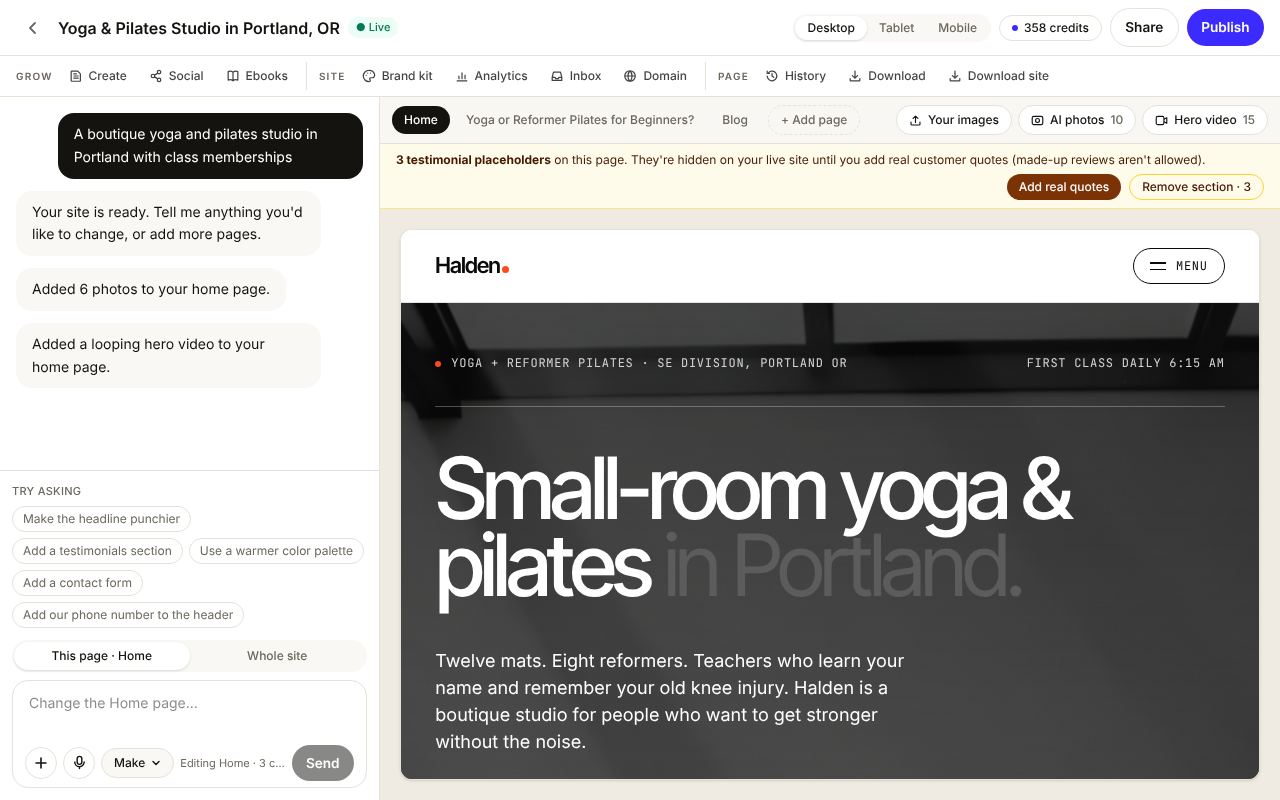
The Make menu open, listing everything that can be created. Click the picture to see it full size.
Stuck? Email hello@ubuilder.ai or use the Ask a question button at the bottom right.