User guide · Chapter 4 of 13
Find your way around
What each part of the dashboard is for, and where to find each of your websites' settings.
- 1
The menu on the left
After you sign in, the menu on the left is always there: Overview, My Websites, Content Studio, Marketing Studio, Media Studio, SEO & AI Visibility, Analytics & Leads, Contacts (CRM), Settings & Billing, this User Guide and the Help Center. Your credits are at the top right.
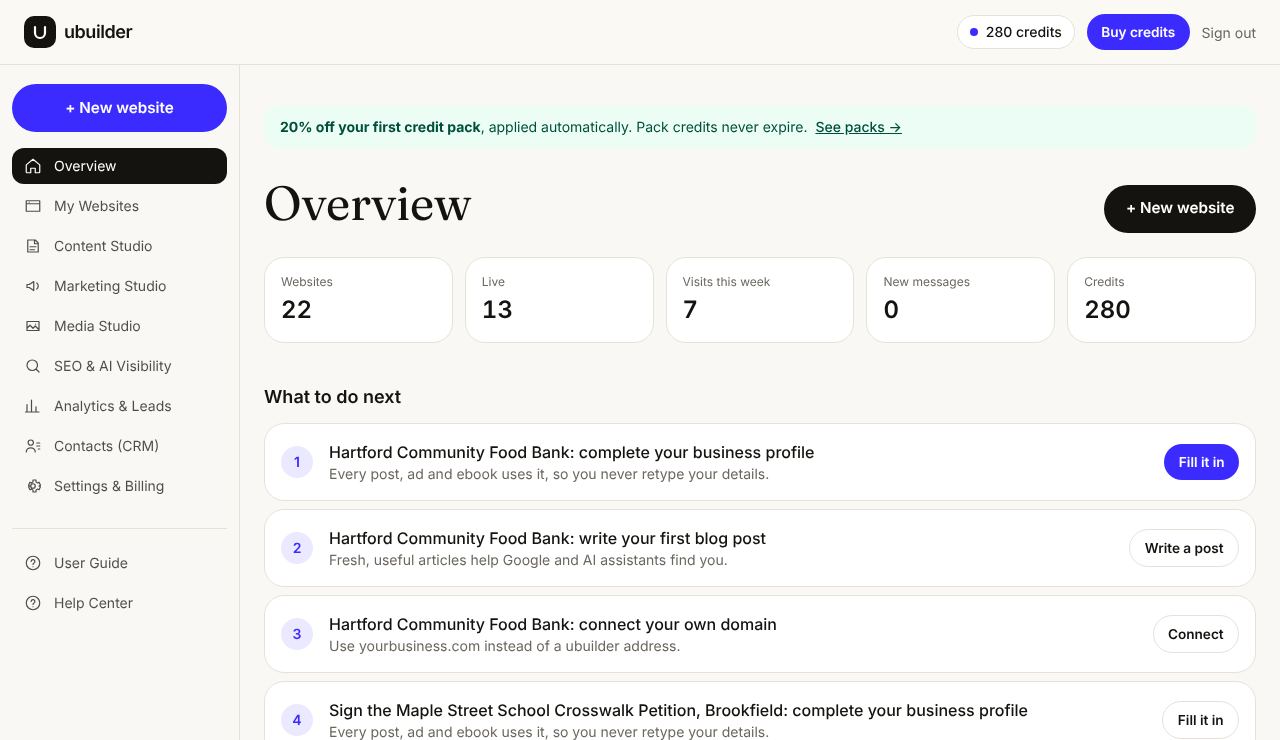
The dashboard overview with the menu on the left and a list of next steps. Click the picture to see it full size. - 2
Overview tells you what to do next
The Overview page shows your websites, how many are live, this week's visits and new messages, and a short list of the most useful next steps, such as finishing a launch checklist or connecting a domain.
- 3
Each website has its own tabs
Open a website from My Websites and click Manage. The tabs are: Overview (a launch checklist), Pages, Design (the Brand kit), Content, SEO, Marketing, Analytics, Leads (messages from your forms) and Settings.
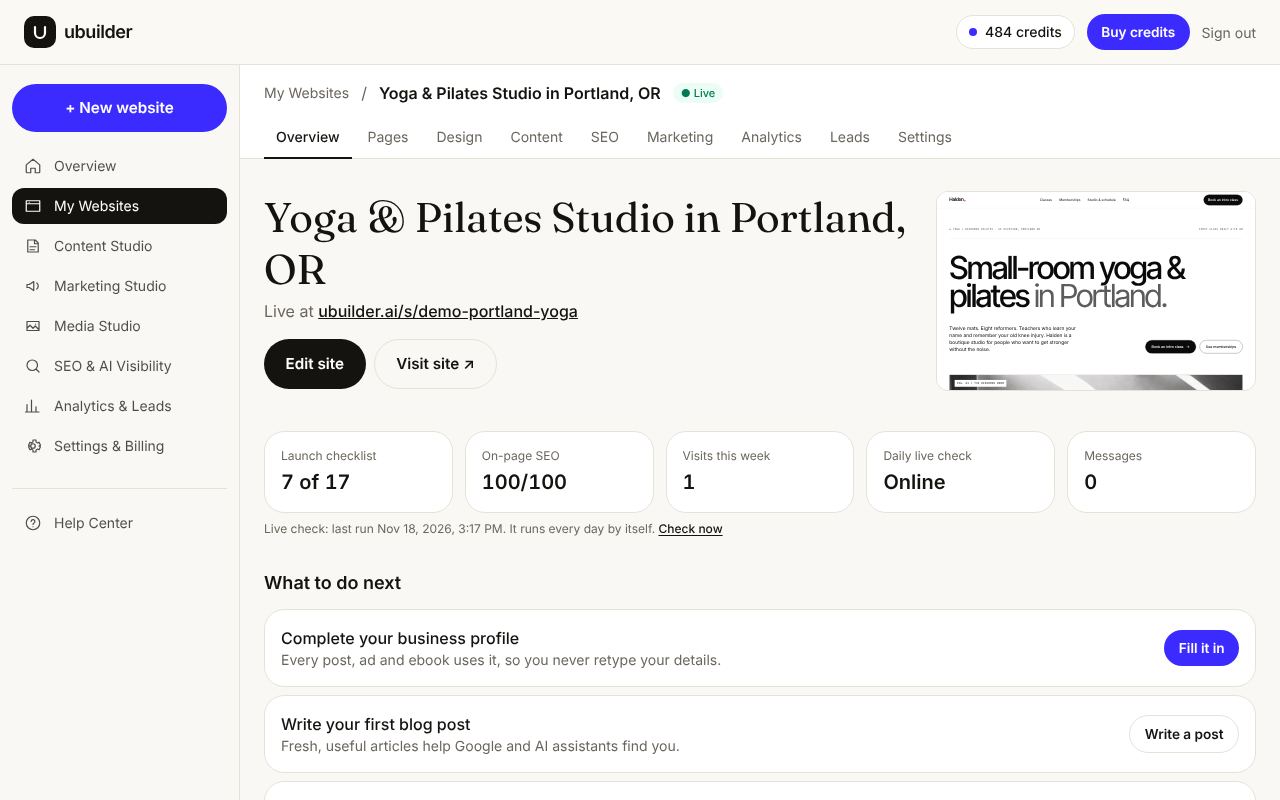
One website's overview with its launch checklist, SEO score and daily check. Click the picture to see it full size. - 4
Fill in your business profile once
Under the site's Settings, the business profile holds your name, what you do, who you serve, your area, phone and email. Every blog post, ad, ebook and social post is written from it, so you never retype your details.
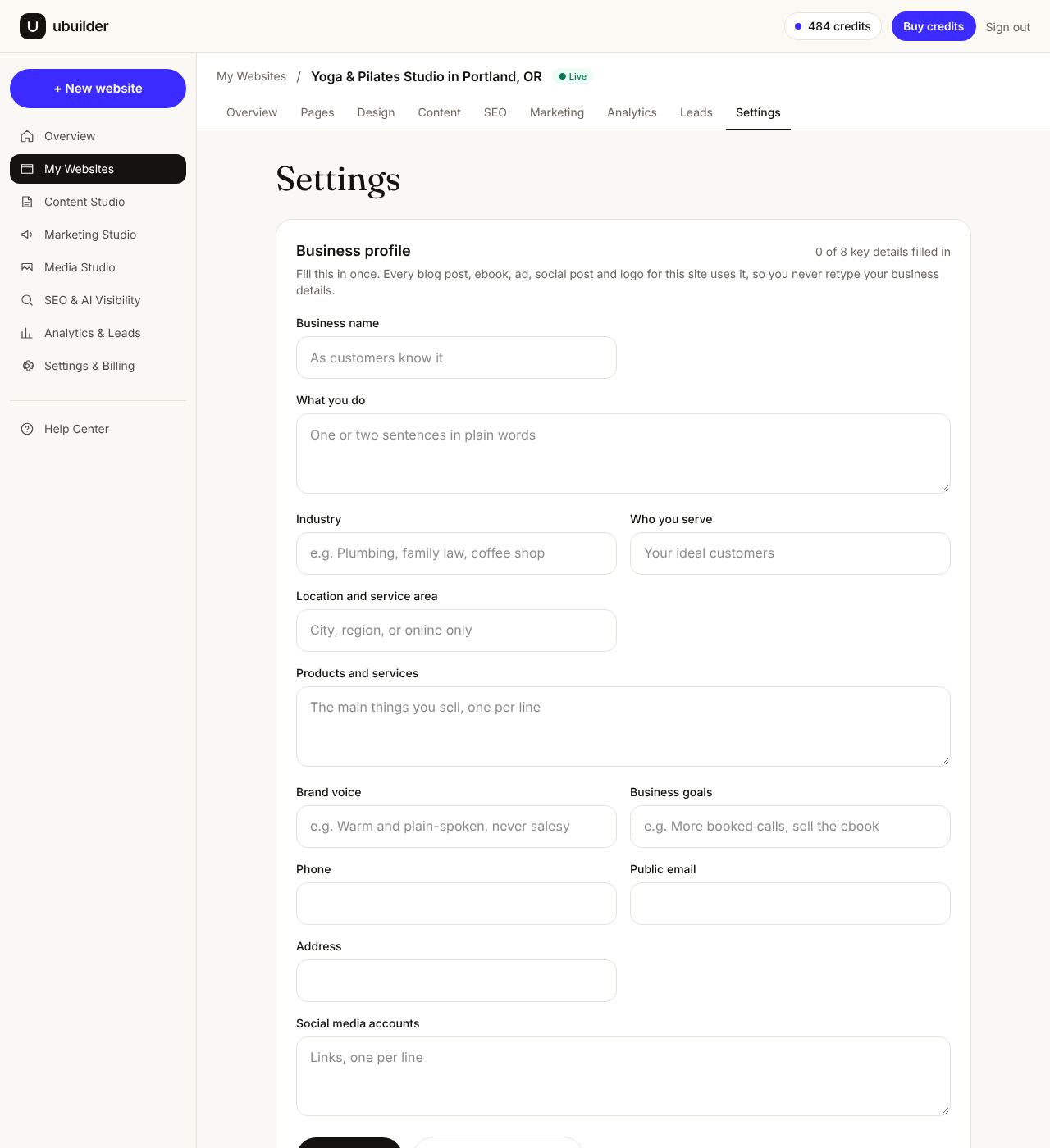
The business profile form in a website's settings. Click the picture to see it full size. - 5
Ask the assistant
The Ask a question button at the bottom right of most pages opens an AI assistant that knows ubuilder's prices and how-tos. It answers in seconds and can be wrong, so for account problems email hello@ubuilder.ai.
Stuck? Email hello@ubuilder.ai or use the Ask a question button at the bottom right.